

You don’t need a redesign to look bigger locally—just smarter signals. If your above-the-fold message states the outcome you deliver, your NAP is consistent sitewide, and mobile users can tap a sticky Call or Book button, you cut friction fast. Add nearby proof (reviews, licenses, guarantees), swap in real local photos, and tighten speed to reduce bounce. Then your service-area pages and tracking turn visibility into booked jobs—if you fix the next one first.
Key Takeaways
- Add a clear above-the-fold value statement with a local CTA like “Book a same-day visit” to match nearby search intent.
- Show trust signals near CTAs: average rating, review count, recent review date, plus licenses and insurance badges linked to verification pages.
- Keep identical NAP (name, address, phone) in header, footer, and contact pages, and add LocalBusiness schema for stronger local visibility.
- Replace stock images with real local photos (team, vans, jobs, landmarks) using captions that mention service areas and neighborhoods.
- Improve mobile conversions with sticky tap-to-call and “Book Now” buttons, plus faster load times through caching and fewer page requests.
Start With a Clear Local Value Statement (Above the Fold)
If you want more local leads without touching your ad budget, put a clear local value statement above the fold that tells people exactly what you do, where you do it, and why you’re the best choice. You’ve got 3–5 seconds to earn trust, so lead with outcomes: “24/7 emergency plumbing in Austin—on-site in 60 minutes.”
Pair it with one proof point (review count, years, or guarantee) to tighten Brand messaging and reduce bounce. Add a single, local call-to-action (“Book a same-day visit”) to lift Customer engagement.
Keep the wording specific to your service area and primary job types, mirroring real search intent. Test two versions and track scroll depth and click-throughs to pick the winner fast.
Repeat Your Name, Address, and Phone Sitewide
Because local buyers move fast, you need your NAP—business name, address, and phone—repeated consistently across your site (header, footer, contact page, and key service pages) so Google can verify you and visitors can reach you without hunting.
Keep the formatting identical: same abbreviations, suite numbers, and local area code. Even small mismatches can dilute trust signals and confuse map listings.
Add your NAP as text (not only an image) so search engines can read it, and pair it with LocalBusiness schema to reinforce entity matching.
This simple repetition strengthens Brand consistency, reduces bounce rates, and improves Customer engagement by removing friction at the decision moment.
If you serve multiple neighborhoods, include each location’s NAP on its dedicated page to support “near me” intent.
Add a Sticky “Call” and “Book Now” Button
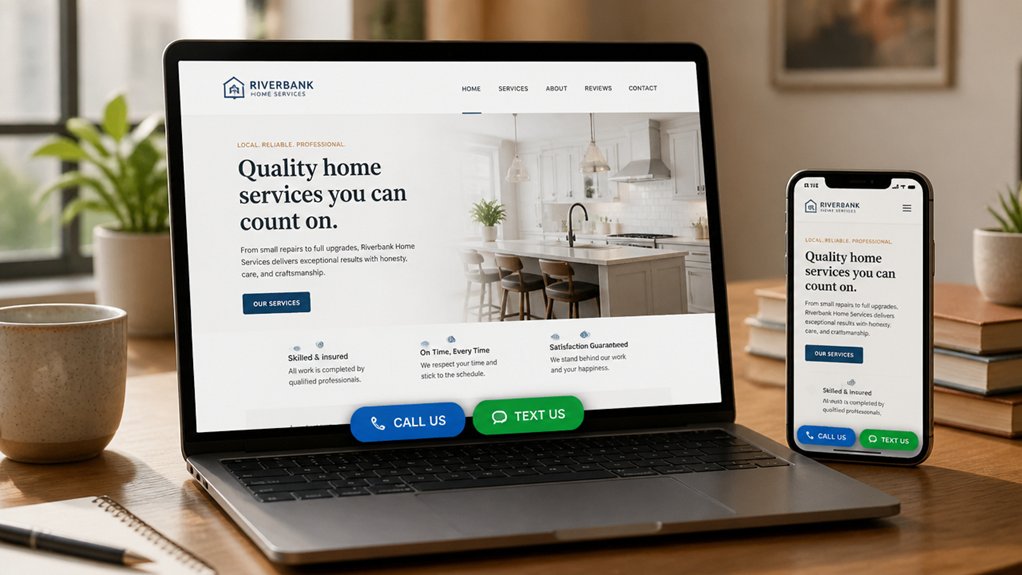
Most local visitors find you on a phone, so you should keep sticky “Call” and “Book Now” buttons pinned to the screen to cut taps and drop-offs.
Use a clear tap-to-call link and a one-step booking flow that opens fast, pre-fills key details, and confirms the location you serve.
Track clicks and booked appointments by device and city so you can prove what’s converting and refine it.
Mobile-First Sticky Buttons
When someone lands on your site from a phone, they’re often ready to act within seconds, so give them an always-visible path to convert. Add a mobile-first sticky bar with “Call” and “Book Now” that stays above the fold as they scroll, and size it for thumbs (44–48px targets).
Use interactive design to show the nearest location, today’s hours, and “Next available” without extra taps, boosting user engagement and reducing drop-offs. Track taps in analytics and segment by ZIP code so you can see which neighborhoods respond and when.
Keep the bar lightweight (no heavy scripts), match it to your brand colors, and test placement: bottom bars often outperform top bars on mobile. Aim for faster actions, fewer bounces, and more local leads daily.
Clear Tap-To-Call Booking
How quickly can a mobile visitor reach you? If they’ve to zoom, hunt, or open a menu, you’re leaking leads. Add a sticky “Call” and “Book Now” bar that stays visible on every page, especially service and location pages. Enable tap to call functionality so one tap opens the phone dialer with the right local number. Track it: click-to-call events, calls by hour, and bookings started from mobile.
For booking optimization, make “Book Now” launch a short form or calendar with your next available slots, not a long contact page. Preselect the nearest location, show service area text, and keep hours consistent with Google Business Profile. Test button color, label, and placement, then keep what converts best.
Show Reviews, Licenses, and Local Proof Near CTAs
A simple trust boost near your “Call Now” or “Get a Quote” button can lift conversions because it answers the buyer’s risk question at the exact decision point.
Place a 4.8★ average, review-count, and “last review” date beside the CTA so visitors can judge reliability fast.
Add two short Customer testimonials with the customer’s first name and neighborhood to signal you actually serve their area.
Back it up with proof: show your license number, insurance note, and Local certifications (e.g., BBB, state board, manufacturer training) in a tight badge row under the button.
Link badges to a verification page, and keep them above the fold on mobile.
If you track calls or form starts, A/B test with and without proof blocks—you’ll see higher intent clicks.
Swap In Real Local Photos (People, Place, Work)
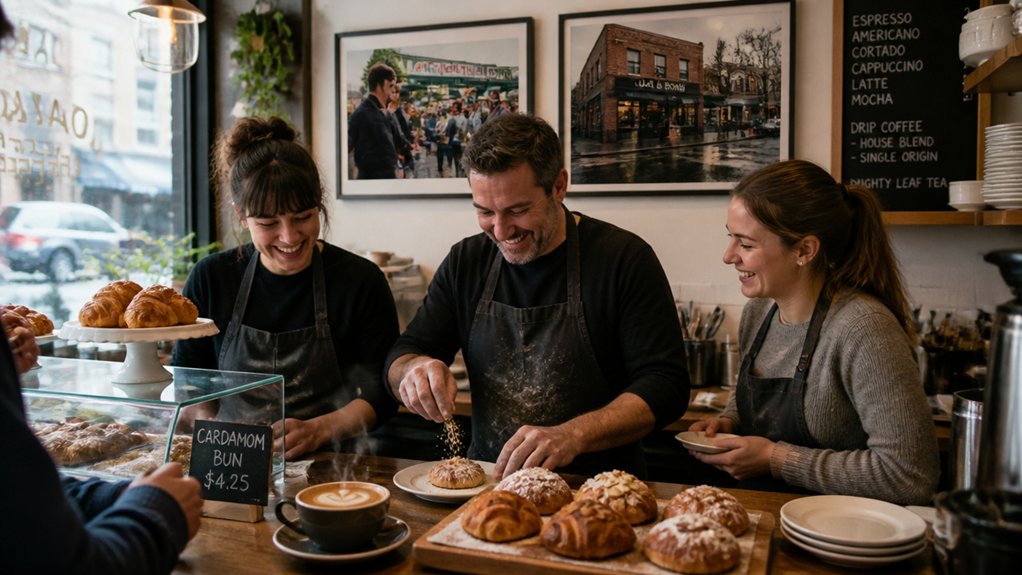
Although polished stock images look “professional,” they usually depress trust because visitors can’t connect them to your town or your crew. Replace them with local photography: your storefront, service vans, team at work, and before-and-after shots from real jobs (with permission). These visuals act as instant “proof,” and users process images faster than copy, which can lift engagement and reduce bounce.
Add community imagery that signals location: recognizable landmarks, neighborhood streets, local events, and partner businesses. Use captions that reinforce service areas (“Installed in Eastwood,” “Repaired on Main St.”) and match photos to intent: faces near booking buttons, finished work near pricing, and your shop hours beside exterior shots.
You’ll look real, nearby, and worth calling today.
Speed Up Your Local Website on Mobile
On mobile, every extra second of load time costs you local leads, especially when customers are comparing nearby options on the go.
You’ll speed things up fast by compressing images for smaller screens and minifying scripts and styles so your pages render quicker.
Then you’ll enable browser caching to cut repeat-visit load times, keeping locals moving from search to call without waiting.
Compress Images For Mobile
Why do local customers bounce before your homepage even finishes loading on their phones? Often, it’s oversized images. On mobile, every extra second cuts conversions, and shoppers searching “near me” won’t wait.
Start with Image optimization: resize photos to the maximum display size you actually use, then export modern formats like WebP or AVIF. Apply mobile compression so hero banners and gallery shots stay crisp while dropping file weight by 30–70%.
Use responsive images (srcset) to serve smaller files to smaller screens, and lazy-load below-the-fold images so the first view appears fast.
Also strip unused metadata and set clear width/height to prevent layout shifts. Your pages load quicker, maps and menus feel instant, and local visitors keep scrolling to book or call.
Minify Scripts And Styles
When your site ships bloated JavaScript and CSS, mobile browsers spend precious seconds downloading and parsing code before locals can tap “Call,” view your hours, or pull up directions.
Minify and bundle your scripts and styles so you ship only what each page needs. That Code optimization trims whitespace, removes dead rules, and shortens identifiers, often cutting file sizes by 20–60% and improving Core Web Vitals like LCP and INP.
You’ll feel it most on slower cellular connections near your shop. Split critical CSS for above-the-fold content, defer nonessential scripts, and load map widgets only after intent (like tapping “Directions”).
Pair speed with Accessibility enhancements: keep focus styles, preserve ARIA attributes, and test minified output for keyboard navigation and screen readers.
Enable Browser Caching
Minifying your scripts and styles cuts what a phone has to download once; browser caching cuts what it has to download again. When a customer returns to check hours, directions, or today’s menu, caching keeps images, CSS, and JS stored locally, so repeat visits load faster and feel instant on spotty LTE.
Set smart cache control headers: give logos, icons, and hero photos a long max-age (30–365 days), and version filenames (style.v3.css) so updates ship immediately. Keep HTML shorter (5–15 minutes) to refresh promos and location pages, while still reducing requests.
Measure before and after in Lighthouse: watch repeat-view load time and total transferred bytes drop. Faster mobile speed improves engagement, calls, and map taps for nearby searchers.
Create Simple Service-Area Pages (Without Spam)
Although you might serve dozens of nearby towns, you don’t need dozens of near-identical pages to show up in local search. Instead, build a small set of service-area pages that match how people actually search: “service + city/region.”
Use your analytics and call logs to pick the top 3–8 locations that drive leads, then create one page per high-demand area.
Make each page genuinely local: list typical response times, neighborhood landmarks, parking or access notes, and the exact services you deliver there. Add a simple map, your coverage radius, and FAQs based on real customer questions.
Keep content unique by referencing local regulations, common property types, or seasonal issues.
This service area optimization approach supports local SEO strategies without thin, spammy duplication.
Write Better Local SEO Title Tags and Meta Descriptions
Because your title tag and meta description often decide whether someone clicks, you should treat them like a local ad headline—not an afterthought. Keep titles under ~60 characters, lead with the service, then add the city and a trust cue: “Emergency Plumber | Austin TX | 24/7.” Write meta descriptions around 150–160 characters that answer intent and set expectations: price ranges, availability, and what makes you different. Use Keyword research to mirror how locals search (near me, neighborhoods, ZIPs), but avoid stuffing; Google rewrites sloppy snippets. Run Competitor analysis: scan the top results and note repeated promises, missing details, and weak differentiators you can own. Refresh these tags on high-traffic pages first, then test one change at a time monthly.
Track Local Leads: Calls, Forms, Bookings (Properly)
When you don’t track calls, form fills, and online bookings end-to-end, you end up optimizing for clicks instead of customers.
Set up lead tracking that ties every contact to the exact page, keyword, and local listing that drove it. Use dynamic call tracking numbers by source (Google Business Profile, ads, organic), and tag each form with UTM parameters plus hidden fields for city/service.
Then measure conversion metrics that matter: qualified calls, booked appointments, show-up rate, and revenue per lead. Record call outcomes, flag spam, and sync bookings into your CRM so you can attribute sales, not just leads.
Review weekly: which neighborhood pages convert, which devices drop off, and which hours drive bookings—then adjust content, CTAs, and budgets accordingly.
Conclusion
When you tighten these simple tweaks, you don’t just “look better”—you earn more local calls. Put your value statement, proof, and a sticky tap-to-call button above the fold, then back it up with consistent NAP, fast mobile load times, and service-area pages that match real searches. For example, a neighborhood plumber adds a sticky “Call Now,” swaps in jobsite photos, and tracks calls—then sees 28% more booked jobs in 30 days.